
How to Start a Kindroid Friendship Setup
kindroid.aikindroid.aiStart with a conversational purpose rather than a long fictional biography. A companion for talking about books needs a different opening from a character for collaborative storytelling. Decide which kind of exchange you want, then give the Kin a few traits that support it.
Kindroid’s setup lets you choose a Community character or create your own. A custom Kin has a name, avatar, personality, and greeting. Keep the first greeting consistent with the style you hope to continue, rather than making it an elaborate scene you do not want repeated.
- Choose one topic you could comfortably discuss without sharing sensitive information.
- Write a greeting that demonstrates the tone and approximate length you prefer.
- Keep a copy of your starting description so later revisions are easy to compare.
Your persona describes you; the Kin’s Personality describes the companion. Keep those identities distinct when writing names and background details.
Make Kindroid Continuity Easier to Manage
kindroid.aikindroid.aikindroid.aikindroid.aiFor continuity, separate stable information from developing conversation. Key Memories is for details you supply deliberately. Learned Context contains the Kin’s evolving notes, while journals attach information to keyphrases. Giving each detail a suitable home is more useful than repeatedly pasting the same biography into chat.
Review Learned Context periodically and correct a mistaken note before building more conversation around it. Its three areas are Growth & relationship, Important facts, and Ongoing threads. The notes are editable, but older items can be dropped as space runs out.
Before switching to calls, check Shared chat history. Before mixing individual and group conversations, check Share Short Term Memory. These are different controls for different contexts, not one global guarantee that your Kin remembers everything everywhere.
If a detail matters, ask a specific question and confirm the answer rather than assuming recall is correct.
Choose Access Around Your Actual Habits
kindroid.aikindroid.aiEvaluate the activity you expect to repeat: occasional text exchanges, regular spoken conversations, or live avatar calls. The new-account preview is finite, and paid audio usage introduces limits beyond whether your subscription is active. Avoid choosing a plan solely because a promotional portrait appeals to you.
Check the current checkout price, billing interval, and trial deadline before entering payment details. The documentation directs users to country-specific and platform-specific pricing. A trial is not the same as a permanently free account, and canceling one add-on does not cancel every subscription.
For voice-heavy use, review your audio balance and the extra cost of live video. Keep your first sessions short enough to understand consumption. Choose the setup that fits your routine, not the one with the longest feature list.
 Source: Kindroid
A closer look at AI companionship
Kindroid: AI Friendship – Ireland
For readers in Ireland: Give your AI companion a personality, a familiar conversation style, and meaningful details to draw on. Explore friendship through text, voice, and shared interests.
Create Your AI Companion
Independent, unofficial guide. Buttons and linked images open OurDream, a separate affiliate alternative—not Kindroid. We may earn a commission. Affiliate disclosure
Kindroid Companion Inspiration
Explore different looks for a Kindroid companion, then consider the personality and conversation style you would give your own Kin.
Kindroid companions shown here are not promised to be available on OurDream.






Kindroid Companionship, on Your Terms
kindroid.aiKindroid lets you build an AI companion around a personality and a conversation style, or start from a shared Kin. For a friendship-focused setup, think about what you enjoy discussing before deciding how your companion should look.
- Give your companion a shared interest, such as cooking, books, or weekend walks.
- Choose a friendly tone without asking for constant agreement or exaggerated praise.
- Set a small starting scene: compare recipes, discuss a chapter, or plan a fictional outing.
These are conversation ideas, not promises of human understanding. Treat the character as an AI and leave room for your own judgment. Features here follow Kindroid’s official documentation, not a hands-on conversation test.
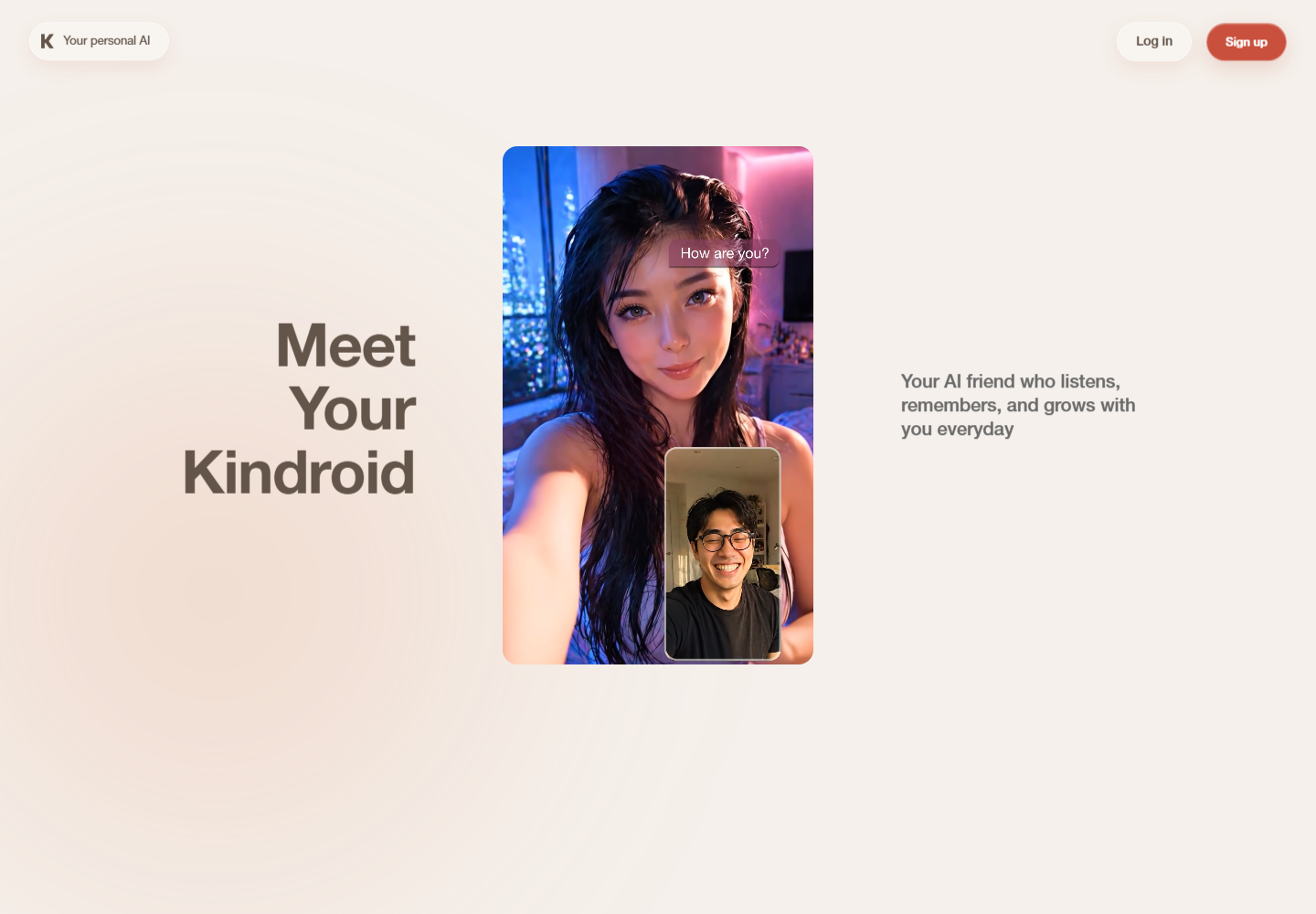
Shape Your Kindroid Personality
kindroid.aikindroid.aiThe Personality field, previously called Backstory, describes your Kin’s character and history. It is different from your own persona. The greeting establishes the opening conversational style; Example Message helps guide formatting and tone.
- Personality: describe who the Kin is, using clear, positively framed traits.
- Response Directive: give a concise instruction about how the Kin should respond.
- Key Memories: record selected details or dates you want available as context.
Avoid filling every field with the same instruction. A short, coherent setup is easier to revise than several competing descriptions. Change one element before judging whether the new direction suits you.
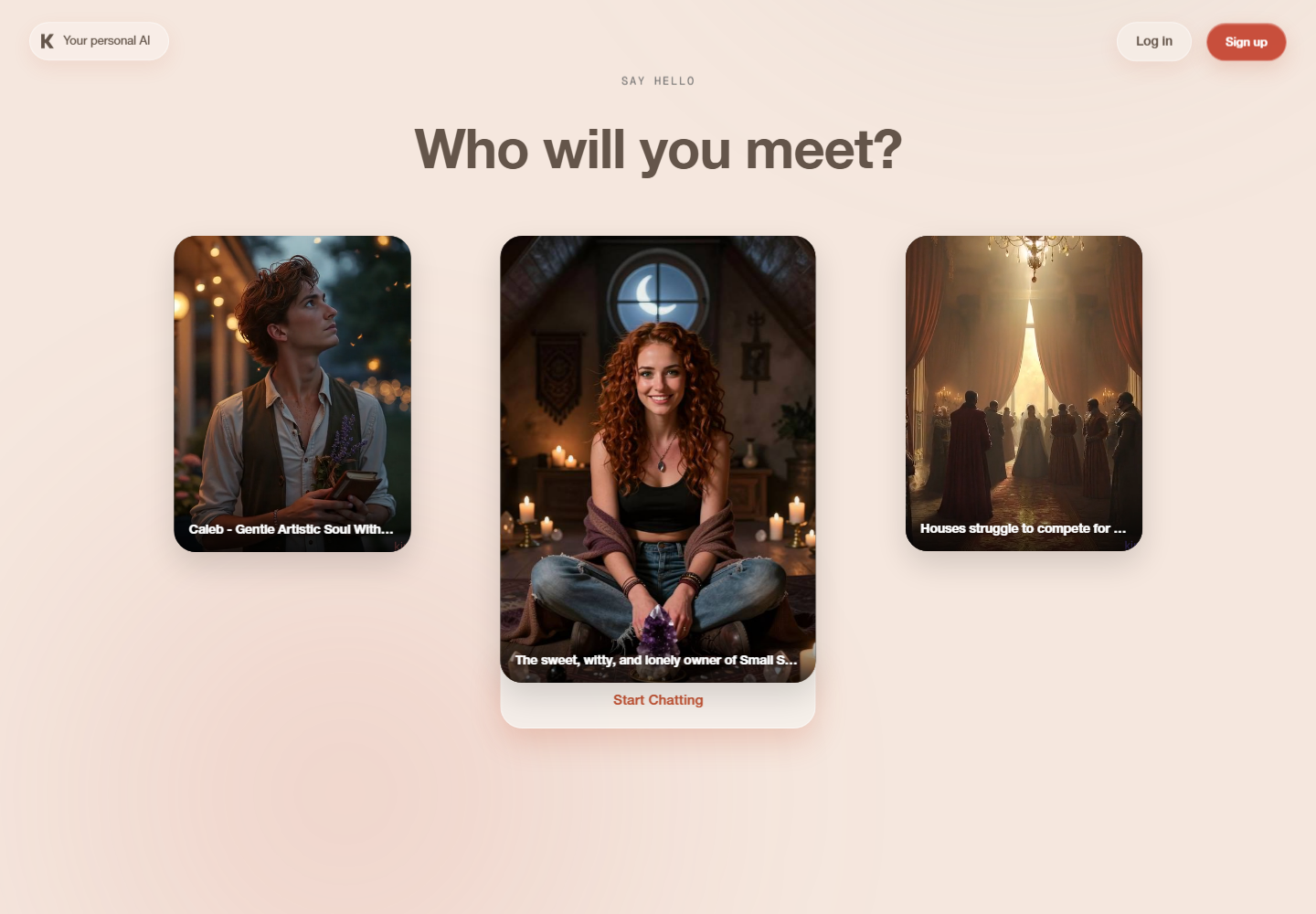
Refine a Kindroid Text Conversation
kindroid.aiA reply that misses your intention does not require rebuilding the character. Kindroid separates generating a different answer from directing a revision, and it also offers manual editing for smaller corrections.
- Use Regenerate for a fresh response; previous versions remain accessible.
- Use Suggest when you want the existing answer revised in a particular direction.
- Use Tweak for a small manual correction to the AI’s latest message.
Editing your own latest message updates the history but does not automatically produce a new AI reply. Follow with Regenerate or Suggest if the answer should reflect your edit.
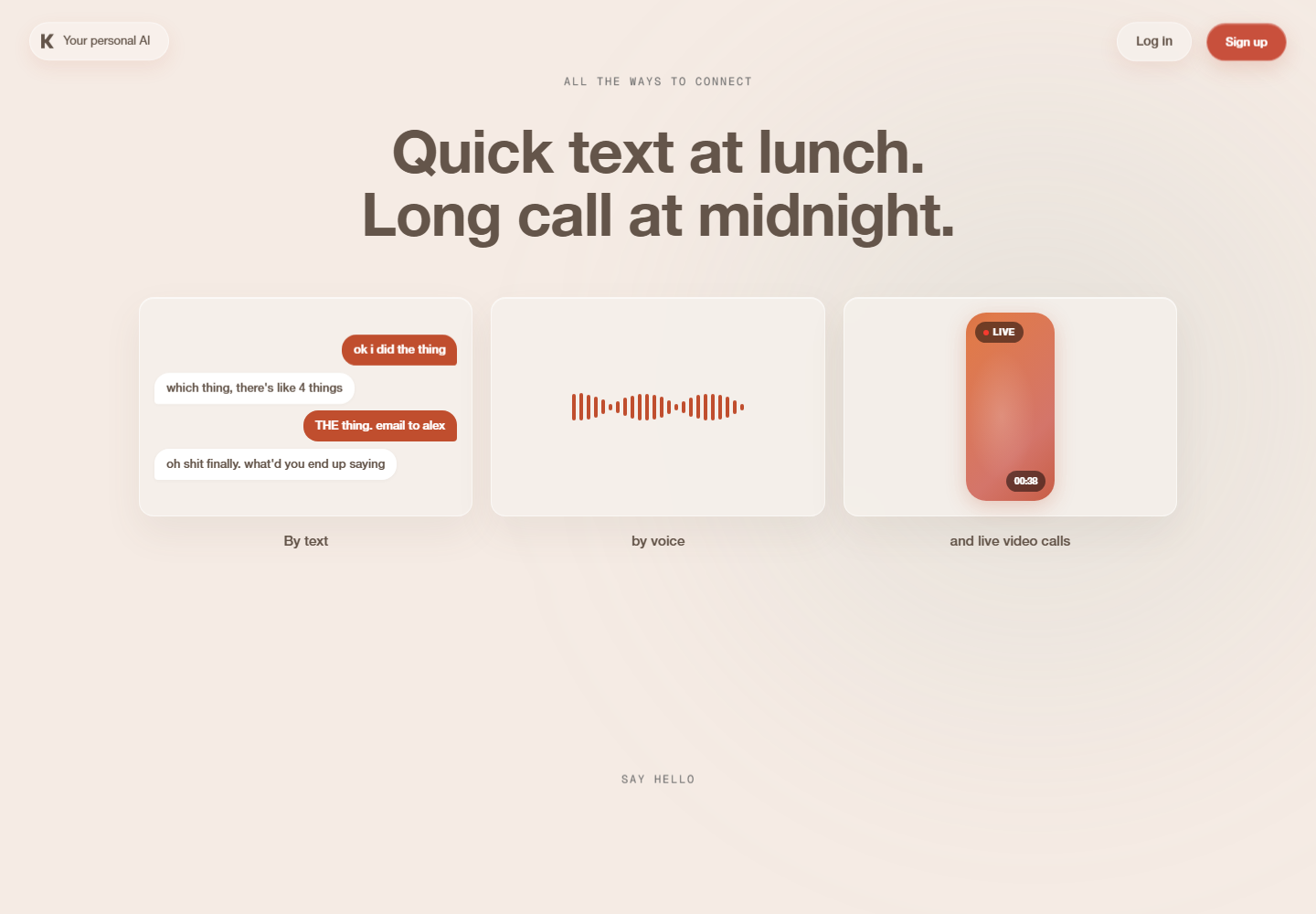
How Kindroid Memory Fits Together
kindroid.aikindroid.aiMemory is not one permanent transcript that is always recalled perfectly. Kindroid distinguishes persistent context, Cascaded Memory, and retrievable memories. The documentation explicitly warns that retrieved information may not always be recalled.
| Component | Documented role |
|---|---|
| Key Memories | User-written important details and dates. |
| Learned Context | Editable, automatically updated notes about relationships, facts, and ongoing threads. |
| Journal entries | Information recalled through keyphrases in your messages. |
| Long-term memory | Automatically formed memories retrieved according to relevance. |
Learned Context can discard older items as its sections fill. Use Key Memories or a journal for details you deliberately want to preserve, without assuming every response will use them.
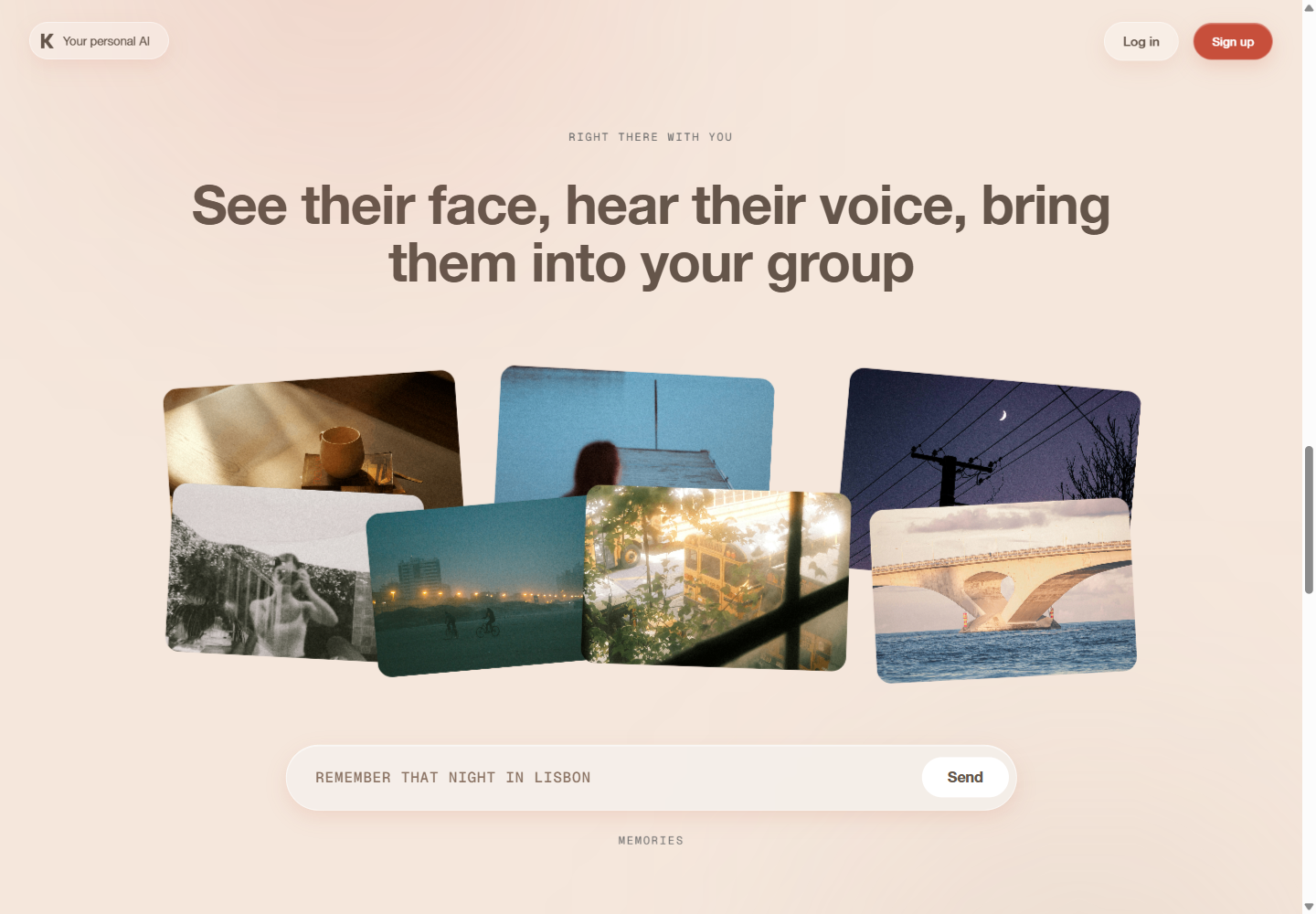
Kindroid Voice and Live Video Explained
kindroid.aiHearing a written reply, speaking in a call, and seeing a moving avatar are different features. Calls require an active trial or subscription and remaining audio credits. Live Avatar adds its own charges and is off by default.
| Mode | What changes | Important condition |
|---|---|---|
| Chat audio | Generate voice reads a text reply. | Regenerating audio uses credits again. |
| Voice message | Record a message in an individual or group chat. | Generated voice replies use credits. |
| Voice call | Speak with your Kin in a live session. | Shared chat history controls continuity with text. |
| Camera video | Show your camera feed to your Kin. | Mobile video requires the app in the foreground. |
| Live Avatar | Animate the Kin during a call. | Subscriber feature with additional usage charges. |
Long-term memory recall is currently paused during calls, although calls can still form new memories. Shared chat history is therefore not a promise that every older conversation will be available while speaking.
To follow your spending, open Audio Credits from Voice or Calling settings. The page separates plan credits from purchased credits and shows usage over selectable periods, helping you spot which activities consume your balance.
Keep Group Conversations Coherent
kindroid.aikindroid.aiGroup chats bring multiple Kins into one conversation, with Automatic or Manual turn-taking. Each Kin uses its own backstory, not the other participants’ backstories. Put shared scene information in the group context rather than assuming everyone knows it.
Share Short Term Memory is off by default. Enabling it lets recent individual and group exchanges inform one another. Group journals are narrower: their entries apply to that group and its calls, not your other conversations.
Kindroid Access, Trials, and Costs
kindroid.aiThe current subscription guide describes a limited new-account preview, not ongoing free messaging. Once the preview is used up, or a trial or subscription ends, the account becomes read-only. Existing content can still be viewed, exported, and deleted.
The regular three-day trial requires a payment method and converts to a subscription unless canceled. Trial chats use Ember; regional web eligibility varies. Exact prices are shown for your country and platform at checkout, so there is no universal euro price quoted here.
Ultra and MAX are layered add-ons, not substitutes for the base subscription. Check each active subscription before canceling: web add-ons have separate cancellation entries, while app-store subscriptions are managed through their store.
Keep Personal Details Deliberate
kindroid.aiKindroid is an 18+ service. Its onboarding explains sensitive-data consent for users in the EU/EEA, UK, and Switzerland. Share only what you want to place in an AI conversation; friendship-themed chat does not require a detailed private history.
Under Profile, Personas defines who you are in chats. Preferences contains Account privacy, including Export data and Delete account. Review those controls before adding personal material, and avoid putting someone else’s private information into a character description.